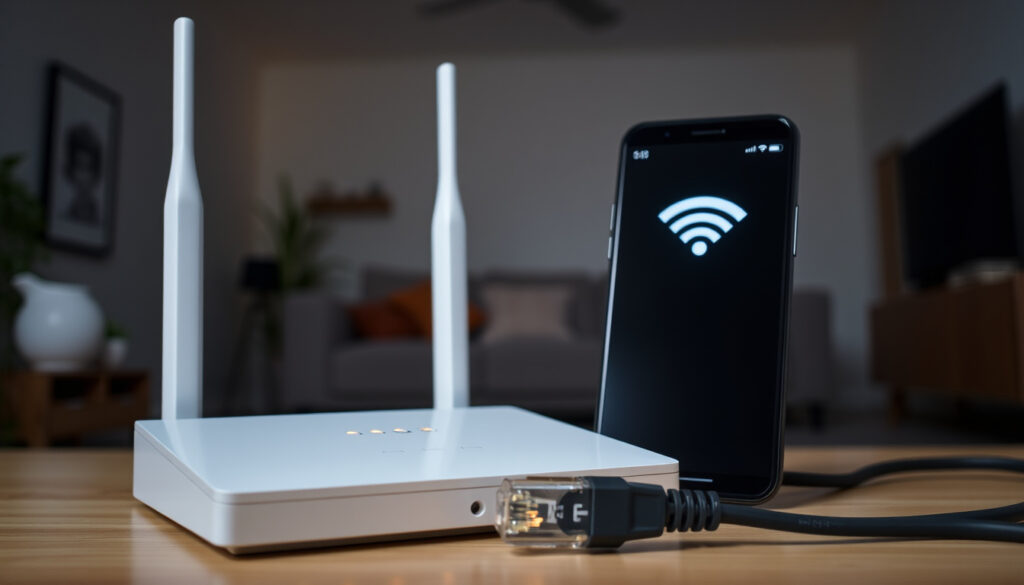
Vodafone WiFi Not Working? Troubleshoot & Fix in Minutes
It’s always frustrating when the Wi‑Fi stops working — especially when you’ve got calls to make or shows to stream. Whether you’re staring at a red light on your Vodafone modem or the internet just drops for no obvious reason, this guide walks you through the most effective troubleshooting steps. We’ll start with a quick diagnosis, then move into resets, outage checks, and how to reach support if nothing else works.
Vodafone Official Status: No known outages (Vodafone Service Updates) ·
DownDetector Reports: Real-time user-reported issues (DownDetector) ·
Most Common Fix: Restart the modem
Quick snapshot
- Restarting the modem resolves many WiFi connectivity issues (Vodafone broadband support)
- Vodafone provides an official service status page (Vodafone Service Updates)
- DownDetector aggregates user reports for third-party verification (DownDetector)
- Root cause of intermittent WiFi failures without obvious pattern
- Effectiveness of factory reset without first backing up router settings
- Factory reset on Vodafone Power Hub takes about 4.5 minutes for full reboot and reconnection (YouTube tutorial)
- Wi‑Fi Hub THG3000 reset button must be held for 8 seconds (YouTube tutorial)
- Contact Vodafone support via phone (1908) or live chat (Vodafone contact page)
- Check the service updates page periodically for known issues (Vodafone Service Updates)
Here is the key information at a glance:
| Official Status | No known outages (Vodafone Service Updates) |
| DownDetector Reports | Real-time user reports available (DownDetector) |
| Common Fix | Restarting the modem resolves most WiFi issues (Vodafone broadband support) |
| Factory Reset Time (Power Hub) | ~4.5 minutes for full reboot (YouTube tutorial) |
| Factory Reset Time (THG3000) | Hold reset button for 8 seconds (YouTube tutorial) |
| LED Indicators | Green = normal, Red = no connection (YouTube tutorial) |
| Reset Tool | Paper clip or SIM eject tool required (YouTube tutorial) |
| Power Cycle Wait | Unplug for 30 seconds, then wait 1 minute after restart (YouTube tutorial) |
What do I do if my Vodafone wifi is not working?
Check modem lights
- Confirm the modem is switched on. Look for a green power light.
- The internet light should be solid green; if it’s red, there’s no connection (YouTube tutorial).
- The WiFi light should be blinking or solid (indicates wireless signal active).
Verify cable connections
- Check that all cables are firmly plugged into the modem and wall socket.
- If you have a dual-socket setup, make sure the right port is used.
Restart connected devices
- Turn off all devices connected to your modem (phones, laptops, consoles).
- Restart the modem itself: unplug from mains, wait 10 seconds, plug back in (YouTube tutorial).
- Power on devices one at a time after the modem has fully reconnected (about 1 minute).
The pattern: Most connection issues stem from a simple glitch that a full power cycle clears. If the modem lights are all green after restart, your hardware is likely fine.
Even if the status page says everything is fine, local congestion or equipment problems can still cause your Wi‑Fi to drop. A quick reset often solves it — no need to call support right away.
How do I reset my Vodafone Wi‑Fi?
Soft reset vs factory reset
- Soft reset (power cycle): Unplug the modem for 30 seconds, then plug back in. Keeps your settings intact.
- Factory reset: Wipes all custom settings (Wi‑Fi name, passwords, port forwards) and returns the router to out-of-box state.
Steps to reboot the router
- Switch off the modem at the mains and unplug it.
- Wait a full 30 seconds (not just 10).
- Plug back in and turn on. Wait 2–3 minutes for full reboot (YouTube tutorial).
- Check if the internet light turns green.
Factory reset the Vodafone Power Hub
- Locate the reset hole on the back, to the right of the power connector (YouTube tutorial).
- Use a paper clip or SIM eject tool to press and hold the button until all green lights on the left side go fully out.
- Release the button. The router will reboot; full reconnection takes about 4.5 minutes.
The catch: Factory resetting without backing up your settings means you’ll need to reconfigure your Wi‑Fi name and password afterward. Jot down the default details from the modem sticker first.
On the Wi‑Fi Hub THG3000, the reset button must be held for a full 8 seconds (YouTube tutorial). The LED lights on the front will flicker and go out one by one from left to right — that’s your visual confirmation.
Why has my Wi‑Fi suddenly stopped working?
Check for service outages
- Visit Vodafone’s Service Updates page — it shows known outages and maintenance.
- Check DownDetector for real-time user reports (spikes in reports often indicate a wider issue).
- If neither shows a problem, the issue is likely local (your equipment or internal wiring).
Interference and signal issues
- Thick walls, metal objects, and electronic devices can block Wi‑Fi signals.
- Try moving the modem to a central, elevated location.
- Vodafone’s Super WiFi Booster can extend coverage, but check it’s paired correctly (Vodafone help page).
Firmware or update problems
- Modems sometimes restart automatically after a firmware update, causing a brief outage.
- After an update, wait 5 minutes for the modem to settle. If the internet doesn’t return, perform a power cycle.
The implication: Random drops are rarely a sign of permanent failure. Most are temporary glitches from interference, updates, or local congestion. A structured check saves time.
How do I report my internet not working?
Contact Vodafone support
- Phone: 1908 (Republic of Ireland) — free from a Vodafone mobile (Vodafone contact page).
- Live chat: available on the Vodafone website.
- Social media: @VodafoneIreland on X (Twitter).
Use the online broadband fault checker
- Go to Vodafone’s broadband support page and run the fault checker tool.
- The tool will test your line and modem remotely and suggest fixes.
- If no fault is found, it may still detect signal issues or noise on the line.
Report via the Vodafone app
- Download the My Vodafone app (iOS/Android) and log in.
- Under “Broadband”, you can see your connection status and open a support ticket.
Why this matters: Using the fault checker before calling can resolve the issue faster. Vodafone’s team will have diagnostic data ready if you do call.
Is Vodafone Ireland down?
Check official status page
The Vodafone Service Updates page displays planned maintenance and current outages. It states: “No known outages. Our network services are working normally.”
Use third-party outage sites
- DownDetector shows a live graph of user reports. A sudden spike suggests a regional issue.
- Geographic comments can tell you if neighbours are affected.
Monitor social media for reports
- Search X (Twitter) for “Vodafone down” or “Vodafone outage Dublin” to see real-time complaints.
- Local Facebook groups often post about area-specific downtime.
The trade-off: National status pages may not show very localised faults. Combining official checks with social feedback gives the clearest picture.
Confirmed facts
- Restarting the modem resolves most WiFi connectivity issues (Vodafone broadband support page).
- Vodafone provides an official service status page (Vodafone Service Updates).
- DownDetector aggregates user reports for third-party verification (DownDetector).
What’s unclear
- Root cause of intermittent WiFi failures without obvious pattern.
- Effectiveness of factory reset without first backing up router settings.
What customers and support say
Check your modem is switched on. Are the LED lights on the back of the modem green? Check the cables are correctly connected.
— Vodafone broadband support page
No known outages. Our network services are working normally.
— Vodafone Service Updates page
The consistency of these messages: Vodafone’s official line is that the network is stable. When individual connections fail, the problem usually lies at home — and the fix is often simple.
Summary
A non-working Vodafone Wi‑Fi connection is almost always solvable without a technician. Start with the modems lights and a power cycle, then check whether the issue is local or wider by using both Vodafone’s official updates and DownDetector. If a factory reset becomes necessary, remember to note your router details first. For Vodafone customers in Ireland, the choice is clear: try the quick steps in this guide before picking up the phone — most will be back online in under 10 minutes.
Related reading: Cheapest SIM Only Deals UK: Lebara vs Tesco vs Vodafone
Frequently asked questions
How long does a router reset take?
A power cycle takes about 2–3 minutes (30 seconds off, 1 minute to reboot, then a minute to reconnect). A factory reset on the Power Hub takes roughly 4.5 minutes (YouTube tutorial).
Can I use my phone as a Wi‑Fi hotspot while fixing my Vodafone broadband?
Yes. Most mobile plans include personal hotspot. Use it as a temporary connection while troubleshooting.
Why does my Wi‑Fi work but the internet does not?
This usually means the Wi‑Fi signal between your device and the modem is fine, but the modem has no internet connection. Check the modem’s internet light — if it’s red, follow the troubleshooting steps above.
How often should I restart my Vodafone modem?
There’s no set schedule. Restart only when you experience issues. Frequent restarts can upset firmware processes.
Does Vodafone charge for technical support calls?
Calling 1908 from a Vodafone mobile is free. From other phones, standard rates apply (Vodafone contact page).
What do the LED lights on my Vodafone modem mean?
Green = normal operation. Red = no connection or fault. No lights = no power. Check the modem’s user manual for exact legends (YouTube tutorial).
How can I improve the Wi‑Fi signal strength in my home?
Place the modem centrally, keep it away from metal and electronic devices, and consider a Vodafone Super WiFi Booster if you have dead zones (Vodafone help page).
More related posts
 Joe Swash: Health, Family, and Net Worth Explained
 Maika Monroe: Movies, Relationships, and Quick Facts
 Paddy Mayne: Real SAS Rogue Hero
 Matt Lucas: Illness, Weight Loss, Husband, and Bake Off
 Corey Feldman: Documentary, Movies, Wives, Net Worth, Haim
 Teagan Croft: Rapunzel Casting and Career
 Johannes Radebe: Biography, Partner, Strictly Journey & Net Worth
 Nathan Fielder: Biography, Shows, and Stunts Explained
