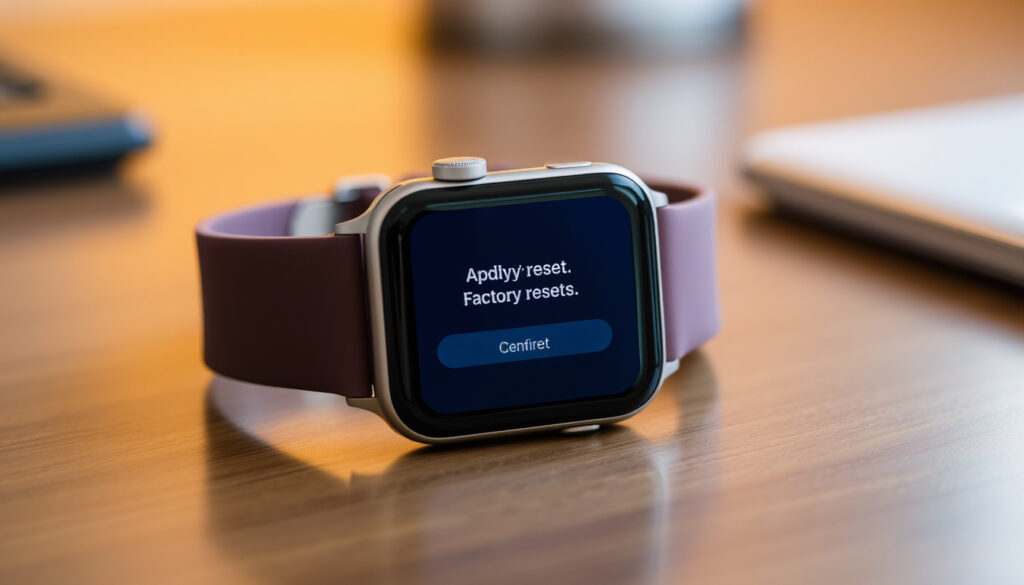
How to Reset Apple Watch: Force Restart & Factory Reset
That moment when your Apple Watch screen freezes or you can’t remember the passcode — it happens more often than you’d think. The good news is that every reset scenario has a reliable fix, from a quick force restart to a full factory wipe. This guide walks through each method with official Apple instructions, so you can pick the right one without losing data (or your cool).
Force restart duration: hold side button + Digital Crown for at least 10 seconds Apple Support’s restart guide ·
Factory reset removes: all content, settings, and paired credit cards Apple’s passcode recovery page ·
Unpairing via iPhone: requires iPhone with Watch app and Bluetooth Apple’s unpair and erase guide
Quick snapshot
- Force restart steps documented by Apple (Apple Support’s restart guide)
- Unpair via iPhone creates a backup (Apple’s unpair and erase guide)
- Factory reset without passcode possible on charger (Apple’s passcode recovery page)
- Whether resetting without previous owner’s Apple ID is possible without proof of purchase
- How long recovery mode takes on older watchOS versions
- No recent changes to Apple Watch reset procedures; current methods remain standard (Apple’s passcode recovery page)
- After reset, set up as new or restore from backup; if selling, ensure Activation Lock is removed (Apple’s unpair and erase guide)
| Label | Value |
|---|---|
| Force restart duration | 10 seconds holding two buttons |
| Factory reset data loss | All content, settings, Apple Pay cards |
| Unpair backup | Automatic backup to iPhone |
| Passcode recovery | Only via hardware recovery mode |
| Activation Lock removal | Requires original Apple ID credentials |
How do I force reset my Apple Watch?
When to use a force reset
Use a force restart only when the watch is frozen or the screen is unresponsive and a normal restart doesn’t work (Apple Support’s restart guide). It does not erase any data.
Step-by-step force restart instructions
- Place the Apple Watch on its charger (if the battery is low).
- Press and hold the side button and the Digital Crown simultaneously for at least 10 seconds.
- Release when the Apple logo appears.
Apple warns not to restart the watch while it is charging; the side button and Crown method works even when the screen is black (Apple Support’s restart guide).
What to do if force reset doesn’t work
If the logo doesn’t appear after 15 seconds, try again with a different charger or cable. If the watch remains unresponsive, a factory reset via recovery mode may be needed.
The implication: Force restart is a first-aid tool, not a fix for passcode or software corruption.
How do you reboot the Apple Watch?
Normal restart via power button
- Press and hold the side button until the sliders appear.
- Drag the Power Off slider.
- Wait a few seconds, then press and hold the side button again until the Apple logo appears.
Difference between restart and force restart
A normal restart safely powers down the operating system; a force restart cuts power abruptly. Use normal restart for daily issues, force restart only for a frozen screen (Apple Support’s restart guide).
When to use each method
Normal restart: sluggish performance, minor glitches. Force restart: unresponsive touch, black screen.
The catch: Neither removes a forgotten passcode — that requires a full erase.
What button do I press to Reset my Apple Watch?
Side button functions
- Press and hold to power off or access Emergency SOS.
- Used in combination for force restart.
Digital Crown functions
- Scroll, zoom, press to go to Home screen.
- Held with side button for force restart.
Combination for force restart
Press and hold both side button and Digital Crown for at least 10 seconds. No single button resets the watch — the combination is required (Apple Support’s restart guide).
Memorize the two-button hold — it’s the only way to force restart without data loss.
The trade-off: No button combo on Apple Watch acts as a factory reset; that requires navigating Settings or using recovery mode.
How do I factory reset an Apple Watch without the passcode?
Using recovery mode on the charger
Place the watch on its charger and keep it there. Then follow these steps (Apple’s passcode recovery page):
- Press and hold the side button until you see the Power Off slider.
- Press and hold the Digital Crown – a “Erase All Content and Settings” option appears.
- Tap Reset, then tap Reset again to confirm.
Requirements: watch must be on charger and paired iPhone nearby (if available)
You can complete this process without the paired iPhone nearby, but the watch must remain on the charger throughout. If you have the original iPhone, you can also erase from the Watch app (My Watch > General > Reset > Erase Apple Watch Content and Settings) (Apple’s passcode recovery page).
What to do if you don’t have the paired iPhone
Use the recovery mode method directly on the watch. However, this erases all data and does not remove Activation Lock. The next owner will need your Apple ID and password to pair it (Apple’s passcode recovery page).
Why this matters: Without the original Apple ID, the watch becomes a paperweight — keep your credentials or contact Apple with proof of purchase.
How do I reset my watch and pair again?
Unpairing via iPhone Apple Watch app
Open the Watch app on your paired iPhone, go to My Watch > All Watches, tap the info icon next to your watch, then tap Unpair Apple Watch. This creates a backup and removes Activation Lock (Apple’s unpair and erase guide).
Unpairing directly on the watch
On the watch, go to Settings > General > Reset > Erase All Content and Settings. Enter your passcode if prompted. This erases data but does not disable Activation Lock (Apple’s unpair and erase guide).
Re-pairing steps after reset
- Bring the watch close to your iPhone.
- Follow the on-screen pairing instructions in the Watch app.
- Restore from backup or set up as new.
Unpair via iPhone is the safest method if you plan to keep the watch or sell it — it cleans the Activation Lock.
The implication: Always unpair via iPhone before selling; a direct wipe on the watch leaves a lock that only the original owner can unlock.
Why is my Apple Watch not pairing to my phone again?
Common causes: Bluetooth/Wi-Fi interference, outdated software
- Both devices must have Bluetooth and Wi-Fi turned on.
- Ensure the iPhone is updated to the latest iOS and the watch to the latest watchOS.
- Try restarting both devices before attempting to pair again.
Fix: restart both devices, update watchOS and iOS
Restart the iPhone (hold side button + volume, slide to power off). Restart the watch via side button. If the problem persists, reset network settings on the iPhone (Settings > General > Reset > Reset Network Settings).
Factory reset as last resort
If nothing works, erase the watch using recovery mode and set it up as new. This clears any corrupted configuration that blocks pairing.
The trade-off: A factory reset will delete all data but often resolves stubborn pairing issues.
Step-by-Step Reset Guide
Three key methods, one pattern: matching the reset to your situation avoids data loss and lockouts.
| Method | Best for | Data preserved? | Removes Activation Lock? |
|---|---|---|---|
| Force restart (side button + Digital Crown) | Frozen or unresponsive watch | Yes | No |
| Factory reset via Settings (with passcode) | Erasing before selling or gifting (with iPhone backup) | No – backup to iPhone | Only if unpair from iPhone first |
| Factory reset without passcode (recovery mode on charger) | Forgotten passcode or locked watch | No | No |
The catch: Only unpairing via iPhone both backs up your data and removes Activation Lock. Direct erasure from the watch leaves the lock intact.
Clarity: What we know for sure and what’s still fuzzy
Confirmed facts
- Force restart steps documented by Apple (Apple Support’s restart guide)
- Unpair via iPhone creates a backup (Apple’s unpair and erase guide)
- Factory reset without passcode possible on charger (Apple’s passcode recovery page)
What’s unclear
- Whether resetting without previous owner’s Apple ID is possible without proof of purchase
- How long recovery mode takes on older watchOS versions
“On your Apple Watch, open the Settings app. Tap General, then tap Reset. Tap Erase All Content and Settings.”
Apple Support (Apple’s passcode recovery page)
“To force restart, hold down the side button and the Digital Crown at the same time for at least 10 seconds, until the Apple logo appears.”
Apple Support (Apple Support’s restart guide)
For anyone selling an Apple Watch or recovering from a forgotten passcode, the choice is clear: always unpair via your iPhone first if you can. If you can’t, the recovery mode method works but leaves Activation Lock in place — and the only fix for that is the original owner’s Apple ID. Without it, the watch can’t be paired again, and that’s a lock that no button combination can break.
youtube.com, youtube.com, discussions.apple.com, youtube.com
For a more comprehensive walkthrough, you can refer to this detailed reset guide that covers soft, hard, and factory reset methods in depth.
Frequently asked questions
How to reset Apple Watch without previous owner?
Without the previous owner’s Apple ID and password, you cannot remove Activation Lock after a reset. You can still erase the watch using recovery mode, but pairing it to a new iPhone will require the original credentials. Proof of purchase sent to Apple may help unlock it (Apple’s passcode recovery page).
How to reset Apple Watch without paired phone and password?
Place the watch on its charger, then follow the recovery mode steps: hold side button, then hold Digital Crown until the erase option appears. This works even without the paired iPhone nearby (Apple’s passcode recovery page).
Too many passcode attempts how to reset Apple Watch?
After too many wrong passcode attempts the watch may become disabled. The only way to recover is to erase it using recovery mode (charger method) or via the paired iPhone using the Watch app (Apple’s passcode recovery page).
How to reset Apple Watch time?
The Apple Watch automatically syncs time from the paired iPhone. To reset the time, ensure your iPhone has the correct time zone and date (Settings > General > Date & Time). Restart both devices if the time is still wrong.
How to unpair Apple Watch without iPhone?
You can erase the watch from the watch itself (Settings > General > Reset > Erase All Content and Settings). This will remove data but not disable Activation Lock. To remove the lock, you must later sign in with your Apple ID (Apple’s unpair and erase guide).
How to reset Apple Watch Series 3 without paired phone?
The recovery mode method works on all Apple Watch models, including Series 3. Place on charger, hold side button, then hold Digital Crown to reach the erase screen (Apple’s passcode recovery page).
What is the difference between force restart and factory reset?
A force restart (side button + Digital Crown) reboots the watch without data loss. A factory reset erases all content, settings, and paired cards, and may or may not remove Activation Lock depending on the method used (Apple Support’s restart guide).
More related posts
 Tyler Posey: Sexuality, Sobriety, and Career FAQs
 Rebecca Goodwin: Age, Children, OnlyFans Worth, and Controversy
 George Washington: First President, Biography & Facts
 Neal McDonough: Blackballed by Hollywood for His Faith
 What Happened to Matt Cardle? Addiction, Comeback & Net Worth
 Elisabeth Fritzl: 24-Year Captivity Case Facts
 Scott Adkins: Martial Arts, Net Worth, and Personal Life FAQ
 What Is the 67 Meme? Meaning, Origin, and Hand Gesture Explained
